
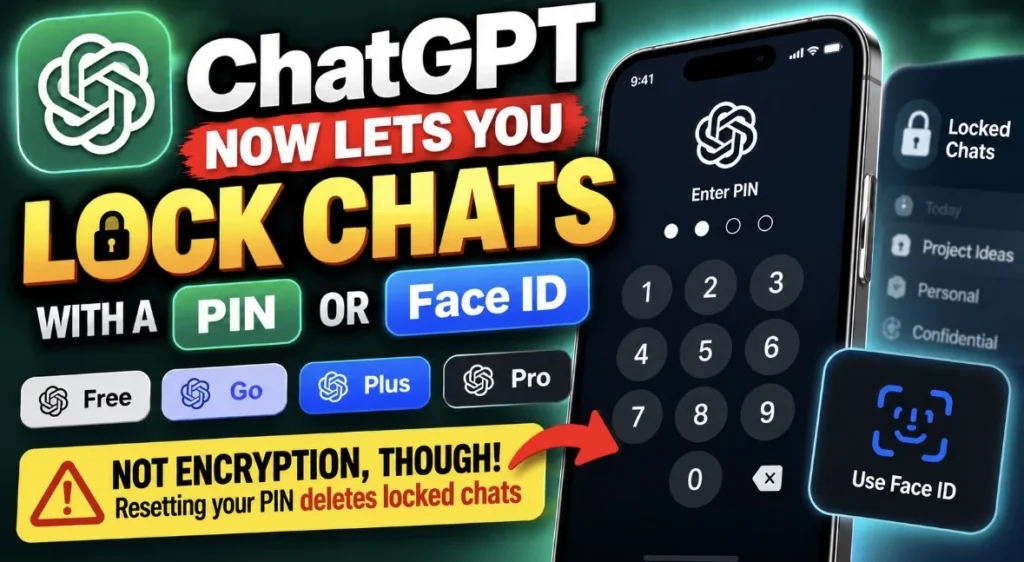
How to Lock ChatGPT Chats With a PIN or Face ID (and the One Catch That Can Wipe Them)
I’ve handed my phone to someone to show them one ChatGPT answer and then panicked about what was sitting right below it in the sidebar.
If you use ChatGPT for anything personal, you’ve probably done the same.
OpenAI just fixed that. As of October 20, you can lock ChatGPT chats behind a 4-digit PIN, and on supported phones behind Face ID, Touch ID or your phone’s unlock, according to OpenAI’s release notes.
It’s rolling out gradually to Free, Go, Plus and Pro, plus Business, Enterprise and Edu.
I like it. But it’s a privacy curtain, not a safe. And there’s one setting that can delete everything you locked, permanently.
Here’s how to use it without getting burned.
What ChatGPT locked chats actually do
A locked chat stays saved in your account, but it disappears from your regular chat history, your pinned chats and conversation search.
It moves to a special spot: Projects > Locked chats.
To open anything in there, you need your PIN or your phone’s biometrics.
Files you uploaded or created inside that chat get hidden with it, per OpenAI’s locked chats help page.
TechCrunch reports OpenAI pitched it for moments like planning a surprise or talking about something personal, then handing your device to a friend to show them a different chat.
That’s exactly the use case. Shoulder surfers, shared laptops, screen shares on Zoom.
How to lock ChatGPT chats, step by step
This works on the web, the iPhone and Android apps, and the new ChatGPT desktop app for Mac and Windows.
- Open the chat you want to hide.
- Tap or click the three dots (•••) for more options.
- Select Lock chat.
- Select Lock chat again to confirm.
- The first time, ChatGPT asks you to create a PIN. Enter 4 digits, then enter them again.
That’s it. The chat moves into Locked chats, and its title drops out of your history and search.
One heads-up from OpenAI: search can take a little while to catch up, and another device with ChatGPT already open might keep showing the title until it refreshes.
So if you’re about to share your screen, check your other devices first.
Don’t see Lock chat? The rollout is gradual, so it may just not have reached your account yet.
How to turn on Face ID or Touch ID for locked chats
The PIN is the main key. Biometrics are optional and set up per device.
On iPhone:
- Open ChatGPT Settings.
- Go to Security and login.
- Tap Account PIN.
- Turn on Use Face ID or Use Touch ID.
On Android: choose Use device unlock when ChatGPT prompts you.
Your PIN still works as the backup on every device, and it’s tied to your OpenAI account, so the same PIN works everywhere you’re signed in.
How to open, relock and unlock a chat
To open one: go to Projects, then Locked chats, enter your PIN or use Face ID, and pick the chat.
That only gives you temporary access. It doesn’t unlock anything for good.
On iPhone and Android, access ends after 1 minute away from your locked chats or 1 minute with the app in the background.
On the web, it ends when you refresh or close the tab, or after you’ve been away from it.
Done early? Hit Lock now to close it immediately.
To unlock a chat for good: open it, hit the three dots, choose Unlock chat (just Unlock on iOS), and confirm. It goes back to your regular history.
You can also start brand new chats right inside Locked chats once you’ve locked your first one.
The catch: forget your PIN and your locked chats are gone
This is the part I’d tattoo on everyone’s hand.
If you forget your PIN, the only fix is a reset. And OpenAI says resetting your account PIN permanently deletes all locked chats, anything remembered only inside them, and their protected files.
OpenAI Support can’t recover them. Your workspace admin can’t either.
Forgetting the PIN alone doesn’t delete anything. The reset does.
Changing your PIN is different. If you know your current PIN, you can change it in Settings > Security and login > Account PIN and keep everything.
My advice is simple. Pick 4 digits you’ll actually remember. And if a locked chat has something you truly need, copy it somewhere you control.
What locking a chat does NOT do
OpenAI is pretty upfront here, and I appreciate that. Locking a chat does not:
- add end-to-end encryption or a separate encrypted vault
- change how long OpenAI keeps the chat
- change your “Improve the model for everyone” setting
- erase what ChatGPT already remembered before you locked it
- override workspace policies or legal and compliance rules
At work, that last one matters. On Enterprise and Edu, locked chats are still included in the compliance logs your company can access, per OpenAI’s Enterprise and Edu release notes.
So no, locking a chat won’t hide anything from your employer.
Also, if you locked a chat that already had a shared link, the link still works. Delete it separately.
And if ads show up on your plan, they can show up in locked chats too.
Chats you can’t lock
The option won’t appear for temporary chats, archived chats, group chats, chats made from a shared link, chats with scheduled tasks, chats with meeting recordings, or chats tied to background tasks.
Codex conversations and local Work conversations on desktop can’t be locked either.
Locked chat vs temporary chat: which one should you use?
People will mix these up, so here’s my quick rule.
Temporary chat is for conversations you don’t want saved at all. It stays out of your history and isn’t used to improve OpenAI’s models while it stays temporary.
Locked chat is for conversations you want to keep and come back to, just away from prying eyes. It follows your normal model improvement setting.
If it’s a one-off, go temporary. If it’s an ongoing personal thread, like a health worry, money planning or a gift idea, lock it.
My take: good feature, wrong mental model
I think this is a smart, overdue feature.
People already treat ChatGPT like a diary, a doctor’s waiting room and a therapist’s couch. I wrote about how much of our lives now runs through it in my post on whether people can tell you used ChatGPT.
But I worry the word “lock” will make people feel safer than they are.
This protects you from the person next to you. It doesn’t protect you from data retention, a court order or your IT department.
It’s the same lesson I keep coming back to with AI tools that ask for deep access, like when I covered giving AI agents Full Disk Access on a Mac. Know what the tool can see, and know who else can see it.
And ChatGPT is only getting more personal. With GPT-6 and Intelligent UI building tools and visuals right into your chats, there’s more in those threads worth hiding.
So use it. Just use it as a curtain, not a vault.
If you want the basics behind all of this, my guide to what generative AI is is a good place to start.
FAQ
How do I lock a chat in ChatGPT? Open the chat’s three dot menu (•••), select Lock chat, confirm, and create a 4-digit PIN the first time. The chat moves to Projects > Locked chats.
Can you lock ChatGPT chats with Face ID? Yes, on supported iPhones. Go to Settings > Security and login > Account PIN and turn on Use Face ID or Use Touch ID. Android users can choose Use device unlock.
Which ChatGPT plans get locked chats? Free, Go, Plus, Pro, Business, Enterprise and Edu. It’s rolling out gradually, and it isn’t available on ChatGPT for Healthcare.
Are locked chats in ChatGPT encrypted? No. OpenAI says locking a chat doesn’t create end-to-end encryption or a separate encrypted vault, and it doesn’t change how long chats are kept.
What happens if I forget my ChatGPT PIN? You’d have to reset it, and resetting permanently deletes all locked chats, memories stored only in them, and their files. OpenAI Support can’t recover them.
Can my employer see my locked ChatGPT chats? Workspace policies still apply, and on Enterprise and Edu, locked chats are still included in compliance logs. Admins can’t unlock them or reset your PIN, though.
Why can’t I see the Lock chat option? Either the feature hasn’t reached your account yet, or the chat is a type that can’t be locked, like a temporary, archived or group chat.
Sources: OpenAI ChatGPT release notes, OpenAI Help: Using locked chats in ChatGPT, OpenAI Enterprise and Edu release notes, TechCrunch
